How to Create a Custom Object in SAP SuccessFactors Employee Central (MDF Object Guide)
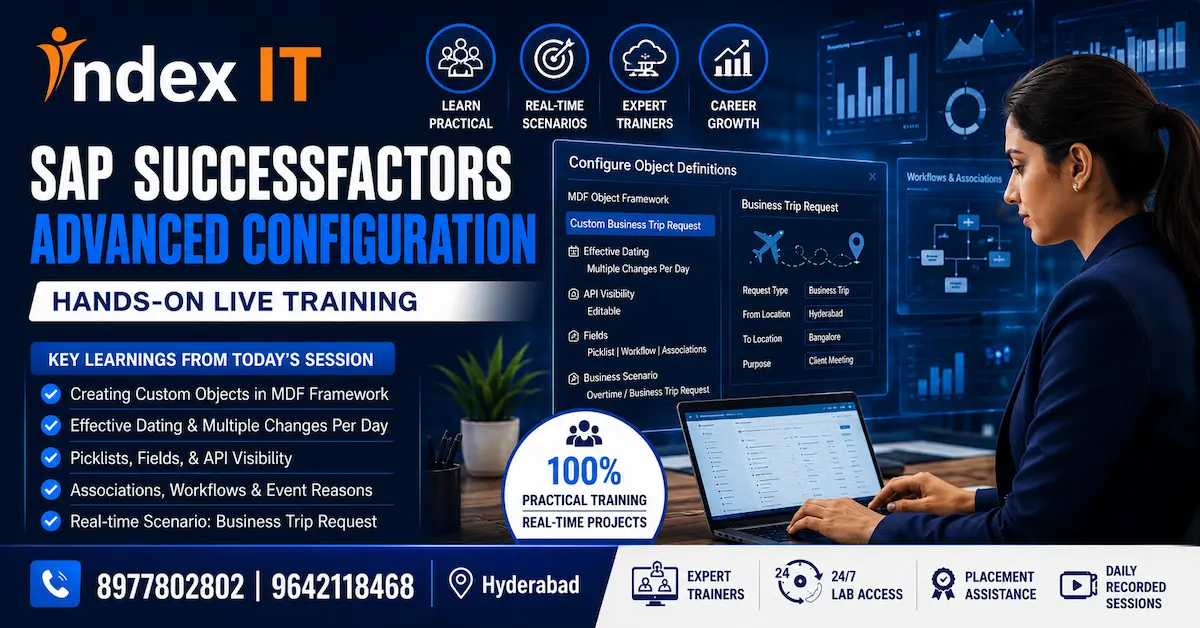
Every SAP SuccessFactors consultant eventually runs into the same wall: the client wants something the standard system simply doesn't offer. Maybe it's tracking multi-city business trips. Maybe it's a special allowance calculation. Maybe it's an approval chain that doesn't match any out-of-the-box object. When that happens, knowing how to build a custom MDF object becomes the difference between a consultant who follows instructions and one who solves problems.
This guide breaks down the exact process, based on a real-time configuration exercise, so you can build a custom object in SAP SuccessFactors Employee Central with confidence — the same way it's expected on live client projects.
What Is the Metadata Framework (MDF) in SAP SuccessFactors?
The Metadata Framework, commonly called MDF, is the technology layer behind almost everything configurable in SAP SuccessFactors. Legal entity, business unit, division, department, and pay grade are all MDF objects, even though they look like standard fields to an end user.
Because MDF is generic by design, it also lets consultants define entirely new objects. This is what makes SAP SuccessFactors Employee Central genuinely flexible rather than a rigid, one-size-fits-all HR system. Once you understand MDF, you stop seeing SAP SuccessFactors as a fixed product and start seeing it as a framework you can extend.
Why Businesses Need Custom Objects in Employee Central
No two companies run HR exactly the same way. A manufacturing firm might need a shift allowance object. A consulting company might need a travel and expense object. A logistics business might need a vehicle assignment object tied to employee profiles.
Since SAP cannot predict every business requirement in advance, custom objects fill that gap. They allow HR teams to:
- Capture data specific to their industry or internal policy
- Turn a manual, paper-based process into a digital self-service feature
- Attach approval workflows to processes that aren't part of standard SuccessFactors
- Extend the employee profile with company-specific sections, visible directly on the employee's page
This is exactly why custom object creation shows up so often in real implementation projects, and why it's a recurring topic in SAP SuccessFactors interviews.
Standard Objects vs Custom Objects: Quick Comparison
| Aspect | Standard Object | Custom Object (MDF) |
|---|---|---|
| Origin | Delivered by SAP | Created by the consultant/implementation team |
| Examples | Legal Entity, Department, Pay Grade | Business Trip Request, Shift Allowance, Vehicle Assignment |
| Configuration Effort | Minimal — mostly activation and mapping | Full configuration — fields, UI, permissions, workflow |
| Business Use Case | Common across almost all companies | Specific to one organization's process |
Real-Time Scenario: Building a Business Trip Request Object
To make this practical rather than theoretical, let's walk through an actual scenario used in one of our live Employee Central sessions: creating a custom object called "Business Trip Request." This object needed to capture employee travel details, calculate trip duration, record allowance amounts, and appear directly on the employee's profile as a self-service section.
Step 1: Start with Configure Object Definition
Every custom object begins in the same place: Configure Object Definition. From here, select "Create New" and assign a clear, descriptive code. In this case, the code was set as "Custom Business Trip Request," written without spaces or commas, since MDF object codes follow strict naming rules. Underscores are the only separator allowed.
Step 2: Choose the Right Effective Dating Option
This step trips up a lot of beginners. SAP SuccessFactors gives four effective dating options: none, basic, from parent, and multiple changes per day.
Because an employee could realistically take more than one business trip on the same date, "multiple changes per day" was the correct choice here. Choosing "basic" instead would have blocked the system from recording more than one entry per day, which is a common configuration mistake that surfaces only after the object goes live.
Step 3: Set API Visibility to Editable
API visibility controls whether the object can actually be maintained through the front end. If this is left as "read only" or "not visible," the object will technically exist, but nobody will be able to enter data into it through Manage Data. Setting it to "editable" is what makes the object usable in the first place.
Step 4: Decide Between Configuration and User Transactional
SAP SuccessFactors also asks you to classify the object category. "Configuration" objects are meant for the implementation team to maintain. "User transactional" objects, on the other hand, are designed for end users to interact with directly.
Since the Business Trip Request object needed to work as an employee self-service feature, it was classified as user transactional. This single dropdown decision determines whether HR configures the object behind the scenes or employees use it themselves.
Step 5: Enable Self-Service via Workflow Subject User
This is arguably the most overlooked step in the entire process. By default, a new custom object only appears in the Manage Data transaction, meaning only administrators can maintain it.
To turn it into something an employee can access from their own profile, you need to copy the object's external code and paste it into the Workflow Subject User field. Once that's done, the object becomes linked to the employee record itself, and self-service access becomes possible.
Step 6: Add and Configure Fields
With the object structure defined, the next step is building out fields. For the Business Trip Request object, this included:
- Employee ID (string, 255 characters)
- Requester Name (string, 100 characters)
- Requester Pay Grade (linked to the existing Pay Grade foundation object, not a new custom field)
- Trip Start Date and Trip End Date (date type, 10 characters)
- Trip Total Duration (decimal, 21 characters)
- Multiple Destination (pick list, Yes/No)
- Business Trip Total Amount, Allowance, Hotel Accommodation, and Air Ticket fields (all decimal, 21 characters)
Notice that Requester Pay Grade was linked to the standard Pay Grade foundation object instead of building a brand-new field. This is a best practice worth remembering: if SAP SuccessFactors already has an object for something, reuse it. Creating a duplicate field for data that already exists leads to inconsistent reporting down the line.
Step 7: Configure the Pick List Correctly
Pick lists function as dropdown fields, and SAP SuccessFactors ships with thousands of standard pick lists already built in. For a simple Yes/No field, there's rarely a need to create one from scratch — the standard Yes/No pick list handles it.
One detail that's easy to miss: enabling "Display pick list without external code" in the UI field renderer setting. Without it, users see both the code and the label together, which looks messy on the front end. With it enabled, only the clean label shows up.
Step 8: Build the Front-End Layout with Manage Configuration UI
Once the object itself is saved, the next stop is Manage Configuration UI. Here, you select your custom object as the base object and design how its fields should appear. Technical fields like external code and external name are typically hidden from view, since end users don't need to see backend identifiers.
This is also where you can group related fields under a labeled section — for example, grouping trip dates and destination details under a "Business Trip Details" heading — so the layout feels organized rather than like a flat list of fields.
Step 9: Attach the Object to People Profile
A configured object still won't appear anywhere until it's attached to the employee's profile. This happens in Configure People Profile, where you create a new section, name it, and drag the custom MDF block into the layout. From there, you select the correct screen ID, which links back to the UI design built in the previous step.
Step 10: Assign Permissions in Two Places
Permissions for custom objects need to be set in two separate locations, and missing either one causes the object to stay invisible even after everything else is configured correctly.
- Employee Views — under Manage Permission Roles, this controls whether the section is visible on the profile at all.
- Miscellaneous Permissions — this controls whether users can actually create, view, edit, delete, or approve records within the object.
Both need to be enabled for the object to function as intended. This two-part permission structure is one of the most common sources of confusion for consultants who are new to MDF configuration.
Common Mistakes When Creating Custom Objects in SAP SuccessFactors
Based on how learners typically struggle with this topic, a few mistakes come up repeatedly:
- Forgetting to set API visibility to editable, which leaves the object technically created but unusable
- Skipping the Workflow Subject User field, which prevents the object from becoming a true self-service feature
- Granting only one type of permission instead of both Employee Views and Miscellaneous Permissions
- Creating duplicate fields for data that already exists as a foundation object, such as pay grade or cost center
- Choosing the wrong effective dating option, which limits how many entries an employee can create per day
None of these mistakes are complicated once you know about them. However, they're exactly the kind of details that only become obvious through hands-on practice rather than reading documentation alone.
Why This Skill Matters for Your SAP SuccessFactors Career
Custom object creation appears in nearly every SAP SuccessFactors Employee Central implementation project, which makes it one of the most practical skills a consultant can demonstrate. Interviewers frequently ask candidates to explain the MDF framework or walk through how they would configure a custom requirement, precisely because it separates candidates who understand the platform from those who've only memorized standard configuration steps.
For freshers, this topic often comes up as a scenario-based interview question. For experienced professionals switching from core HR modules or other SAP functional areas into SuccessFactors, understanding MDF configuration is usually the fastest way to become project-ready.
Interview Questions Based on This Topic
If you're preparing for an SAP SuccessFactors interview, these questions commonly come up around custom object configuration:
- What is the Metadata Framework (MDF) in SAP SuccessFactors?
- What's the difference between a standard object and a custom object?
- How does the Workflow Subject User field affect object behavior?
- Why would you set an object category as "user transactional" instead of "configuration"?
- What happens if API visibility is set to read-only?
- How do you make a custom object appear on the employee profile?
Being able to answer these confidently, ideally with a real example you've configured yourself, carries far more weight in an interview than reciting definitions.
Frequently Asked Questions
What is an MDF object in SAP SuccessFactors?
An MDF object is any data structure built using the Metadata Framework, SAP SuccessFactors' underlying configuration technology. Both standard objects like Legal Entity and custom objects like a Business Trip Request are technically MDF objects.
Is coding required to create a custom object in SAP SuccessFactors?
No. Creating a custom object is entirely configuration-based. You work through Configure Object Definition, Manage Configuration UI, and Configure People Profile using dropdowns and settings, without writing any code.
What's the difference between "configuration" and "user transactional" object category?
Configuration objects are meant to be maintained by the implementation or admin team. User transactional objects are designed for employees to interact with directly, typically as a self-service feature on their profile.
Why isn't my custom object showing up on the employee profile?
This usually comes down to one of three things: the object wasn't attached to a section in Configure People Profile, the correct screen ID wasn't selected, or permissions weren't granted under both Employee Views and Miscellaneous Permissions.
Can I reuse an existing foundation object instead of creating a new field?
Yes, and you generally should. If a foundation object like Pay Grade or Cost Center already exists, linking to it through Valid Value Source keeps your data consistent and avoids unnecessary duplication.
What does "multiple changes per day" mean in effective dating?
It allows more than one record to be created for the same object on the same date. This is useful for scenarios like multiple business trips or multiple transactions occurring on a single day.
How long does it typically take to build a custom object on a live project?
A single, well-scoped custom object usually takes around 30 minutes to an hour once the requirements are clear. Projects involving multiple objects or complex workflows can take longer, sometimes spanning a full day.
Do freshers get asked about MDF objects in interviews?
Yes, quite often. Since custom object creation is a core part of nearly every Employee Central implementation, interviewers use it to check whether a candidate understands configuration logic, not just theory.
What is the Workflow Subject User field used for?
It links the custom object to the employee record, turning it from an admin-only data table into a self-service feature that employees can access from their own profile.
Is SAP SuccessFactors good for someone coming from a core HR background?
Yes. Professionals with HR process knowledge often adapt quickly to SAP SuccessFactors configuration, since the platform is designed around real HR workflows rather than technical programming concepts.
Key Takeaways
Building a custom object in SAP SuccessFactors Employee Central isn't a single action — it's a sequence of connected decisions, from effective dating and API visibility down to how permissions are split across two different settings. Missing any one of these steps typically means the object exists in the system but doesn't actually work the way it's supposed to.
The good news is that once you've configured a custom object from start to finish even once, with a real business scenario like the Business Trip Request example above, the entire framework starts to make sense. It stops being a checklist and becomes something you understand.
If you're working through this topic on your own, practicing on a live SAP SuccessFactors system makes a significant difference compared to reading configuration steps in isolation. Learners at Index IT work through scenarios like this one directly on SAP servers as part of our SAP SuccessFactors training in Hyderabad, with the same real-time project approach covered in this guide. For those who prefer studying remotely, our SAP SuccessFactors online training follows the identical curriculum with flexible scheduling.
Professionals coming from a traditional HR background often find it useful to start with our SAP HR/HCM training before moving into Employee Central configuration, since it builds the process foundation that makes SuccessFactors easier to grasp. And if you're also exploring how Employee Central connects with other SAP systems, our guide on integrating SAP CPI with S/4HANA and SuccessFactors covers that angle in detail.
For additional real-time tutorials, configuration guides, and interview preparation content, browse our full SAP training blog.
For SAP's own documentation on the Metadata Framework, the SAP Help Portal is a useful reference to cross-check configuration options as SAP continues to update the platform.