🚀 SAP CPI XML to CSV Conversion – Complete Beginner to Real-Time Guide (Step-by-Step)

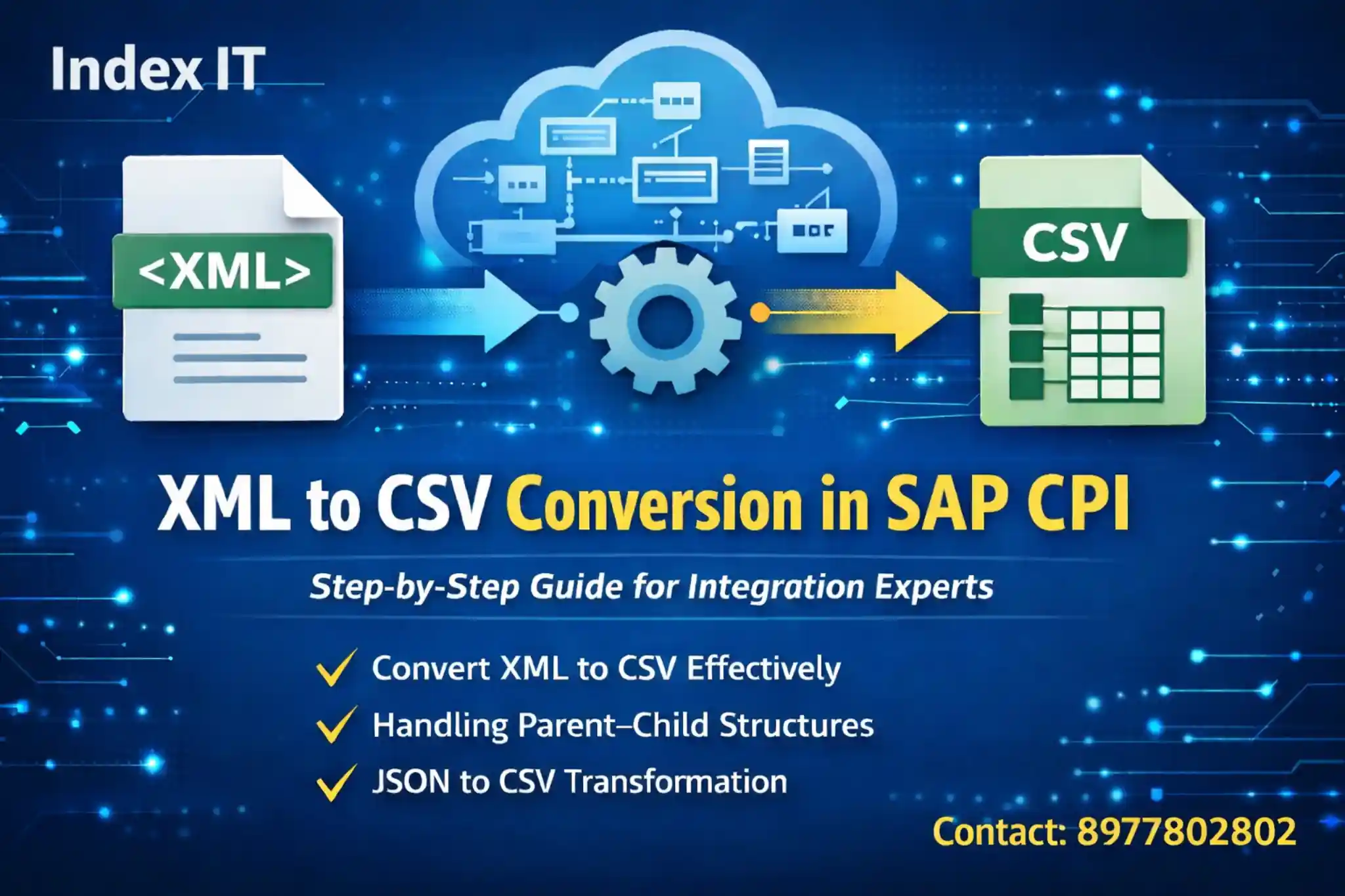
SAP CPI XML to CSV conversion step-by-step guide showing XML to CSV transformation flow in SAP Cloud Platform Integration

Introduction

If you are learning SAP Cloud Platform Integration (CPI) and struggling to understand how data format conversion works, this guide will give you complete clarity.

In real-time SAP integration projects, converting data between formats like XML, JSON, and CSV is a very common requirement. If you want hands-on practical exposure, check our SAP CPI Training in Hyderabad program designed for real-time projects.

Understanding how converters work inside SAP CPI will help you handle real-world transformation scenarios confidently.

📌 In this article, you will learn:

  • What is a converter in SAP CPI
  • Available data formats in CPI
  • XML to CSV conversion step-by-step
  • Handling multiple levels (Parent–Child structure)
  • Handling attributes in XML
  • How to convert JSON to CSV
  • Common mistakes and interview questions

What is a Converter in SAP CPI?

In SAP Cloud Platform Integration (CPI), a Converter is a transformation component used to change data from one format to another format during message processing inside an Integration Flow (iFlow). For detailed technical documentation, refer to the official SAP Cloud Integration documentation .

Converters help integrate systems that use different data formats, making communication seamless between applications.

Common Conversion Examples:

  • XML to CSV
  • JSON to XML
  • XML to JSON
  • CSV to XML

In SAP CPI, converters are available under Message Transformers → Converter within an Integration Flow (iFlow). They are widely used in real-time SAP integration projects for handling data transformation scenarios.

Available Data Formats in SAP CPI

SAP CPI commonly works with the following data formats:

  • XML – Extensible Markup Language
  • JSON – JavaScript Object Notation
  • CSV – Comma Separated Values
  • EDI – Electronic Data Interchange (mainly used in B2B integrations)
  • Plain Text

In most enterprise integrations, XML and JSON are the most frequently used formats.

XML to CSV Conversion – Step-by-Step Process

Step 1: Create a New Integration Flow

Go to the Design section in SAP CPI and create a new Integration Flow (iFlow) to begin the transformation process.

Step 2: Add Content Modifier

Use a Content Modifier to set your XML payload inside the Message Body. This will act as the input data for the conversion process.

Step 3: Add XML to CSV Converter

Navigate to Message Transformers → Converter and select XML to CSV. Configure the required settings such as field separator, header type, and path to source element.

Important Configuration Settings in XML to CSV Converter

After adding the XML to CSV Converter in your Integration Flow, proper configuration is critical to ensure correct CSV output. Below are the most important settings you must configure.

1️⃣ Field Separator

The Field Separator defines how values are separated in the CSV file. The most commonly used separator is a comma (,), but you can also use semicolon (;), pipe (|), tab, or space depending on your requirement.

2️⃣ CSV Header

This option determines whether column headers should appear in the CSV output. To include XML element names as column headers, select XML Based.

3️⃣ Path to Source Element

This is the most important configuration. You must specify the repeating node path from the XML structure (for example: /Students/Student). Incorrect paths will result in improper CSV output.

Handling Parent–Child Structure in XML to CSV Conversion

In real-time SAP CPI projects, XML files often contain multiple levels such as parent and child elements. Proper configuration is required to extract the correct data into CSV format.

Example XML Structure

Consider the following structure:

Student
├── Name
├── Age
└── Address
    ├── Street
    ├── City
    └── State

Required Configuration

  • Enable Include Parent Element
  • Provide correct Path to Source Element
  • Configure Path to Parent Element properly

Important Note

If the XML hierarchy is not configured correctly, the CSV output may generate incomplete or incorrect records. Always analyze the repeating node carefully before setting the path.

Handling Attributes in XML to CSV Conversion

In many real-time SAP CPI scenarios, XML files contain attributes along with child elements. These attributes must be handled properly to ensure accurate CSV output.

Example XML with Attribute

<Address mandal="XYZ">
  <Street>Main Road</Street>
  <City>Hyderabad</City>
</Address>

Required Configuration

  • Enable Include Attribute Values in the XML to CSV Converter
  • Ensure correct Path to Source Element is configured

Important Rule

In the CSV output, attribute values appear before child elements in the same hierarchy level. Always verify the sequence in Trace mode to confirm correct mapping.

How to Convert JSON to CSV in SAP CPI?

SAP CPI does not provide a direct JSON to CSV converter. To achieve this transformation, you must use a two-step conversion approach.

Step-by-Step Approach

  1. Convert JSON to XML using the JSON to XML Converter.
  2. Convert the resulting XML to CSV using the XML to CSV Converter.

Why Two Converters?

Since SAP CPI supports XML as an intermediate structured format, most complex transformations are performed via XML. Therefore, JSON data must first be converted into XML before generating the final CSV output.

Interview Tip

This is a commonly asked SAP CPI interview question. Always remember: There is no direct JSON to CSV converter in SAP CPI — use JSON → XML → CSV sequence.

Common Mistakes in XML to CSV Conversion in SAP CPI

Even though XML to CSV conversion looks simple, many beginners make configuration mistakes that result in incorrect or incomplete output. Below are the most common errors to avoid.

1️⃣ Incorrect Path to Source Element

Providing the wrong repeating node path is the most common issue. Always analyze the XML hierarchy carefully before setting the path.

2️⃣ Inconsistent XML Structure

If different records have different structures or missing elements, the CSV output may become misaligned.

3️⃣ Not Enabling Required Options

Forgetting to enable Include Parent Element or Include Attribute Values when required can result in missing data in the CSV file.

4️⃣ Wrong Field Separator

Selecting an incorrect field separator may cause formatting issues when the file is opened in Excel or other tools.

Best Practice

Always use Trace Mode in SAP CPI to validate the input and output payload before final deployment.

Real-Time Project Best Practices for XML to CSV Conversion in SAP CPI

In real-time SAP CPI implementation projects, XML to CSV conversion requires careful planning and validation. Following best practices ensures accurate transformation and avoids production issues.

1️⃣ Identify the Repeating Node First

Before configuring the converter, analyze the XML structure and clearly identify the repeating element. This element should be configured as the Path to Source Element.

2️⃣ Validate Using Trace Mode

Always enable Trace Mode while testing. This allows you to verify input payload, intermediate steps, and final CSV output before deploying to production.

3️⃣ Maintain Consistent XML Structure

Ensure all records follow a consistent structure. Missing elements in some records can cause column misalignment in the CSV output.

4️⃣ Confirm Field Separator with Business Team

Always confirm whether the business requires comma, semicolon, pipe, or tab-separated files before final deployment.

Expert Tip

Treat XML to CSV conversion as a structural mapping task. The better you understand XML hierarchy, the easier your transformation configuration becomes.

SAP CPI XML to CSV – Frequently Asked Interview Questions

Below are some commonly asked SAP CPI interview questions related to XML to CSV conversion. These questions are frequently discussed in real-time implementation and support projects.

1️⃣ What is Path to Source Element in XML to CSV Converter?

It defines the repeating node in the XML structure. The converter generates one CSV row for each occurrence of this element.

2️⃣ Is there a direct JSON to CSV converter in SAP CPI?

No. JSON must first be converted to XML using JSON to XML Converter, then XML to CSV Converter must be used.

3️⃣ How do you handle parent-child structure in XML?

Enable "Include Parent Element" and configure the correct parent and child paths inside the converter settings.

4️⃣ How do you include XML attributes in CSV output?

Enable "Include Attribute Values" option in the XML to CSV converter configuration.

5️⃣ What happens if XML structure is inconsistent?

The CSV output may become misaligned or incomplete. All records should follow a consistent XML hierarchy for accurate conversion.

Conclusion: Master XML to CSV Conversion in SAP CPI with Confidence

XML to CSV conversion is one of the most important transformation scenarios in SAP Cloud Platform Integration (CPI). Once you understand how to configure the Path to Source Element, handle parent-child structures, and manage attributes, you can confidently work on real-time integration projects.

Proper analysis of XML hierarchy and correct converter configuration will help you avoid common mistakes and ensure accurate CSV output in enterprise environments. If you are planning to build a complete SAP technical career, you can also explore our SAP ABAP Training in Hyderabad to strengthen your backend development skills.

🚀 Want to Master SAP CPI with Real-Time Projects?

At Index IT, we provide practical, real-time focused SAP CPI training designed to help you gain hands-on experience and crack interviews confidently.

Learn XML, JSON, Converters, Groovy Scripts, Integration Flows, and real project scenarios step-by-step.

Book Free Demo Session

Leave a Reply

Your email address will not be published. Required fields are marked *