
SAP CPI SFTP Adapter Configuration: SSH Setup & Authentication Guide
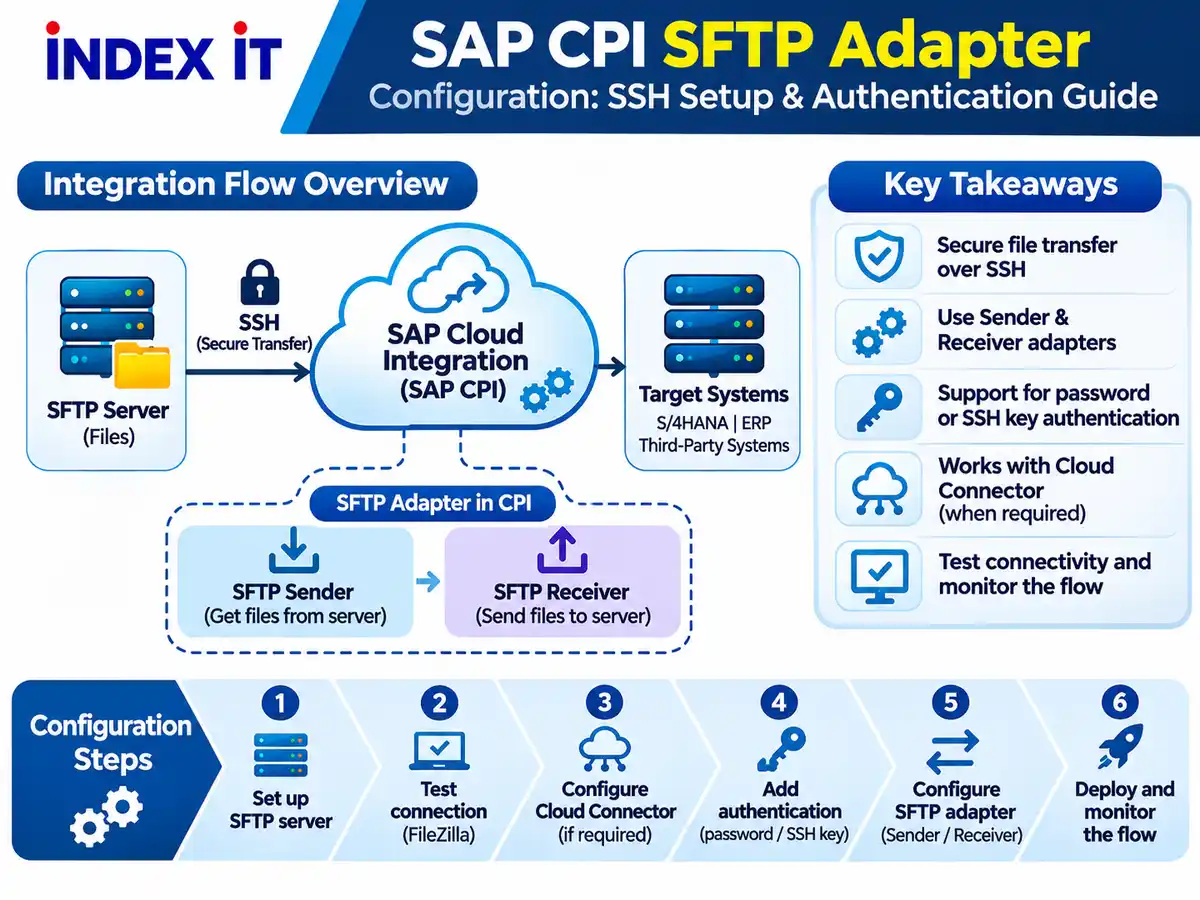
File-based integration remains important in enterprise landscapes. While APIs support many real-time interactions, finance, logistics, and partner systems often exchange files through secure servers. In SAP Cloud Integration, commonly called SAP CPI, the SFTP adapter connects these file exchanges to an integration flow.
Configuring SFTP involves more than entering a hostname. The integration runtime must reach the server, verify its SSH identity, authenticate a user, and have the correct permissions to read or write files.
This guide explains SFTP adapter configuration, SSH connectivity testing, Cloud Connector considerations, authentication methods, and common connection problems.
What Is the SFTP Adapter in SAP CPI?
SFTP stands for SSH File Transfer Protocol. It transfers files through an encrypted SSH connection.
SAP Cloud Integration supports two main SFTP adapter patterns:
- SFTP Sender Adapter: Retrieves files from a configured remote directory and makes them available for processing.
- SFTP Receiver Adapter: Writes files from an integration flow to a remote SFTP directory.
For example, a supplier may upload a CSV file to an SFTP server. An integration flow retrieves it, validates the records, transforms the data, and delivers it to a destination application.
For broader context, see this introduction to SAP CPI and integration flows.
FTP vs FTPS vs SFTP: Key Differences
| Feature | FTP | FTPS | SFTP |
|---|---|---|---|
| Protocol | File Transfer Protocol | FTP secured with TLS | SSH File Transfer Protocol |
| Encryption | Not built in | TLS | SSH |
| Typical Port | 21 | 21 or 990 | 22 |
| Architecture | Separate control and data connections | FTP architecture secured with TLS | Operates over SSH |
SFTP is not simply FTP with encryption enabled. It is a separate protocol built on SSH. This distinction matters when configuring adapters, firewalls, and network connections.
How SFTP Works in an SAP CPI Integration Flow
Inbound Integration:
SFTP Server → SFTP Sender Adapter → Integration Flow → Target Application
Outbound Integration:
Source Application → Integration Flow → SFTP Receiver Adapter → SFTP Server
The SFTP adapter handles file transport. Other components of the integration flow perform validation, message mapping, routing, and error handling.
This separation is useful during troubleshooting because a connectivity problem is different from a message transformation error.
Prerequisites for SAP CPI SFTP Adapter Configuration
| Requirement | Purpose |
|---|---|
| SFTP Hostname | Identifies the remote server |
| SSH Port | Identifies the SSH service |
| Username | Identifies the connecting account |
| Authentication Method | Password or SSH key-based authentication |
| Remote Directory | Location for reading or writing files |
| SSH Host Key | Verifies the server's identity |
| Network Access | Allows the runtime to reach the server |
| Directory Permissions | Controls permitted file operations |
SSH Host Key vs User Authentication Key
The SSH host key helps the client verify the server's identity. A user authentication key pair allows the client to prove possession of an authorized private key.
These are different security mechanisms and should not be confused during configuration.
Step 1: Set Up an SFTP Server for Testing
A local SFTP server can help developers understand the complete connection process before working with enterprise systems.
- Install an SFTP server suitable for your operating system.
- Start the SFTP service.
- Configure the SSH listening port.
- Create a dedicated user account.
- Assign a home directory and required permissions.
- Enable server logging.
- Test the server locally.
For illustration, a test environment might use:
- Hostname:
localhost - Port:
22 - Username:
integration_user - Directory:
/inbound
These are example values, not actual SAP tenant settings. Remember that localhost on your computer does not refer to the same machine from a cloud integration runtime.
Step 2: Test the SFTP Server Using FileZilla
Before configuring SAP CPI, verify the SFTP server with an independent client such as FileZilla.
- Open FileZilla Site Manager.
- Select SFTP - SSH File Transfer Protocol.
- Enter the hostname and port.
- Choose the appropriate logon method.
- Enter the username and required authentication details.
- Connect to the server.
- Verify access to the intended directory.
Review the SFTP server logs for successful connections, authentication failures, file operations, and disconnections.
A successful FileZilla test confirms connectivity from that client environment. It does not automatically prove that SAP Cloud Integration can connect through its own network route.
Step 3: Understand SAP Cloud Connector for SFTP
The connection architecture depends on where the SFTP server is hosted.
A server reachable through an approved public endpoint may support direct connectivity. A server inside a private corporate network may require SAP Cloud Connector or another supported connectivity arrangement.
For a supported on-premise scenario, the conceptual architecture is:
SAP Cloud Integration → SAP Cloud Connector → Internal SFTP Server
What Is a Location ID?
A Location ID helps distinguish Cloud Connector connections associated with a particular SAP BTP subaccount.
When required, the configured Location ID must match the intended Cloud Connector connection.
Is Cloud Connector Always Required?
No. Cloud Connector is not mandatory for every SFTP connection. Its use depends on the server location, network architecture, security requirements, and supported adapter configuration.
For related hybrid integration concepts, see SAP CPI integration with S/4HANA and SuccessFactors.
Step 4: Perform an SSH Connectivity Test in SAP CPI
SAP Cloud Integration provides connectivity testing capabilities for checking connections to remote systems.
Open the relevant monitoring and connectivity testing functionality in your tenant and select the SSH-related test.
Depending on the environment, the test may require:
- Hostname
- SSH port
- Proxy type
- Location ID, when applicable
- Authentication-related settings
A successful test indicates that the checks performed by the tool have passed. It does not necessarily confirm directory permissions or successful end-to-end file processing.
Step 5: Configure SFTP Authentication
Password-Based Authentication
Password authentication uses a username and password accepted by the SFTP server.
In SAP Cloud Integration, credentials should be stored using supported security material rather than being hardcoded into scripts or message payloads.
SSH Public Key Authentication
Public key authentication uses a private and public key pair.
- Generate an SSH key pair using an approved algorithm.
- Keep the private key securely stored.
- Register the public key with the SFTP user account.
- Maintain the private key through the supported SAP Cloud Integration key management mechanism.
- Reference the correct key alias and username in the adapter.
- Test the connection.
Understanding PPK and OpenSSH Keys
PuTTYgen can generate and manage SSH keys, including keys stored in the .ppk format.
However, a PPK file should not be assumed to work directly in every SAP runtime. Where required, convert the key into a supported format using an appropriate tool.
Supported key formats and algorithms depend on the SAP Cloud Integration environment and adapter version.
Step 6: Configure the SFTP Sender Adapter
Use an SFTP sender adapter when the integration flow needs to retrieve files from a remote directory.
Typical configuration includes:
- SFTP server address and port
- Authentication settings
- Remote directory
- Filename selection pattern
- Polling interval
- Post-processing behavior
Choose file post-processing settings carefully to avoid duplicate processing or accidental deletion.
Step 7: Configure the SFTP Receiver Adapter
Use an SFTP receiver adapter when an integration flow must write files to a remote server.
Typical settings include the destination hostname, authentication details, remote directory, filename, and file-writing behavior.
Consider how downstream applications handle duplicate filenames and files that are still being written.
Step 8: Monitor and Test the Integration Flow
- Deploy the integration flow.
- Place a sample file in the source directory for a sender scenario.
- Wait for the configured polling cycle.
- Review the message processing status.
- Verify any transformations and the target system result.
- For receiver scenarios, inspect the destination directory.
- Compare the output with the expected file content.
- Review server logs and SAP message monitoring if processing fails.
For integration designs involving asynchronous buffering and retries, the SAP CPI JMS adapter retry mechanism is a useful related concept.
Common SAP CPI SFTP Connection Issues
1. Connection Timed Out
Check the hostname, SSH port, firewall, network routing, server availability, and Cloud Connector mapping if applicable.
2. Authentication Failed
Verify the username, password, authorized public key, private-key format, and selected authentication method.
3. Host Key Verification Failed
Confirm the server's trusted SSH host key. Unexpected changes should be verified with the server administrator before updating trust settings.
4. Permission Denied
A successful login does not guarantee permission to read, write, rename, or delete files. Check directory permissions.
5. Files Are Not Being Picked Up
Inspect the remote directory, filename pattern, polling interval, file locks, post-processing rules, and other processes accessing the files.
Practical Example: Processing a Supplier CSV File
Consider a supplier application that uploads a file named suppliers.csv to a secure SFTP directory.
An SAP Cloud Integration flow retrieves the file, validates its structure, transforms the records, and sends the resulting data to a destination application.
The process includes:
- Polling the SFTP directory.
- Retrieving the CSV file.
- Validating the incoming records.
- Mapping fields into the target format.
- Delivering the transformed message.
- Monitoring the processing outcome.
This illustrative scenario demonstrates how file transport and message transformation work together.
SFTP Security and Reliability Best Practices
- Use dedicated integration accounts.
- Apply least-privilege directory permissions.
- Store passwords and private keys securely.
- Verify SSH server host keys.
- Use approved cryptographic algorithms.
- Test connectivity and authentication separately.
- Plan for duplicate prevention and failure recovery.
- Monitor both SAP integration messages and SFTP server logs.
Frequently Asked Questions
What is the difference between an SFTP sender and receiver adapter?
The sender retrieves files from a remote SFTP server into an integration flow. The receiver writes files from an integration flow to a remote SFTP server.
Can SAP CPI use SSH key-based authentication?
Yes. Supported SFTP configurations can use SSH key-based authentication. The exact configuration depends on the runtime and adapter capabilities.
Is SAP Cloud Connector mandatory for SFTP?
No. It is relevant to certain private or on-premise connectivity scenarios. Other deployments may support approved direct connectivity.
What is the difference between an SSH host key and a private key?
The host key identifies the server. A client's private key is used to authenticate the client account through its authorized public key.
Why does an SFTP connection succeed while file processing fails?
Successful connectivity does not guarantee directory access or successful message processing. Check permissions, file selection rules, adapter configuration, and integration flow logs.
Conclusion
Reliable SAP CPI SFTP integration depends on network connectivity, SSH server identity, user authentication, file permissions, adapter configuration, and message monitoring.
Testing these components individually makes troubleshooting more manageable. Begin with an independent SFTP client, establish the correct connection route, configure authentication, and complete an end-to-end integration test.
Further Learning in SAP Cloud Integration
SFTP is one part of a broader integration design. Understanding message mapping, monitoring, authentication, and adapter selection helps developers build maintainable interfaces.
For a structured overview of these concepts, explore the SAP CPI training curriculum in Hyderabad.